Apple has added a very useful feature to the iPhone 16 which will allow you to overlay recordings on voice memos. This feature will offer the possibility of record in layers separating your voice from the background so you can use it later in sound editing applications.
The technology company said that the new function will be possible thanks to the hardware features found in the mobile.
In a statement posted online, Apple confirmed that Voice Memos will receive a unique feature in the iOS 18.2 update. Owners of an iPhone 16 Pro and iPhone 16 Pro Max will be able to overlay a vocal track over an existing instrumental recording without the need for headphones. Those from Cupertino point out that layered recording would be perfect for musicians and anyone looking to use the file in professional applications, such as Logic Pro.
The Layered Voice Memos made possible by the advanced processing of the A18 Pro chip and the studio-quality microphones of the iPhone 16 Pro. According to Apple, the iPhone uses machine learning techniques to isolate the voice recording.
The app will create two individual tracks, one with your voice and one with the instruments, making it easy to mix later.
«On iPhone 16 Pro and iPhone 16 Pro Max, you can record a vocal overlay over an instrumental recording without using headphones (iOS 18.2 or later). This allows you to capture musical inspiration: add vocals or a voiceover to a recording existing instrumental, test lyrics, harmonize with instrumental music and more»
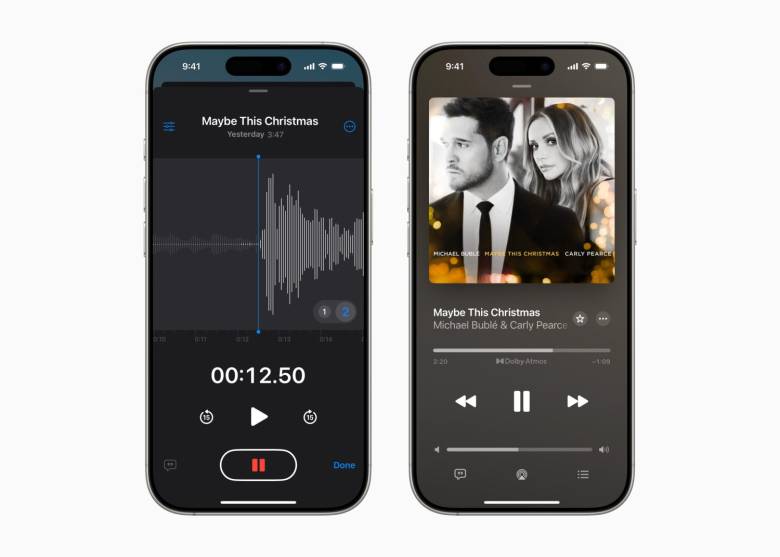
Apple mentions that layered recordings are stored in QTA format (QuickTime Audio) and while they can only be created with an iPhone 16 Pro or Pro Max, Any user with iOS 18.2, iPadOS 18.2 or macOS Sequoia 15.2 devices will be able to play it.
How to record in layers using Voice Memos in iOS 18.2
The essential requirement to use this function is to have a iPhone 16 Pro or iPhone 16 Pro Max and have iOS 18.2 installed. If you comply with the above you only need to follow these steps.
Get informed every morning with our newsletterdiscover the most important things about technology, science, TV series and movies.
- Open the Voice Memos app on your iPhone
- In the list of recordings, select the one to which you want to add a second layer and select the wave icon.
- In the section where the audio wave appears, select the layer where you want to record your voice and press the main button of the app.
- Once complete, the file will display a distinctive icon next to the file name indicating that it is a layered recording.
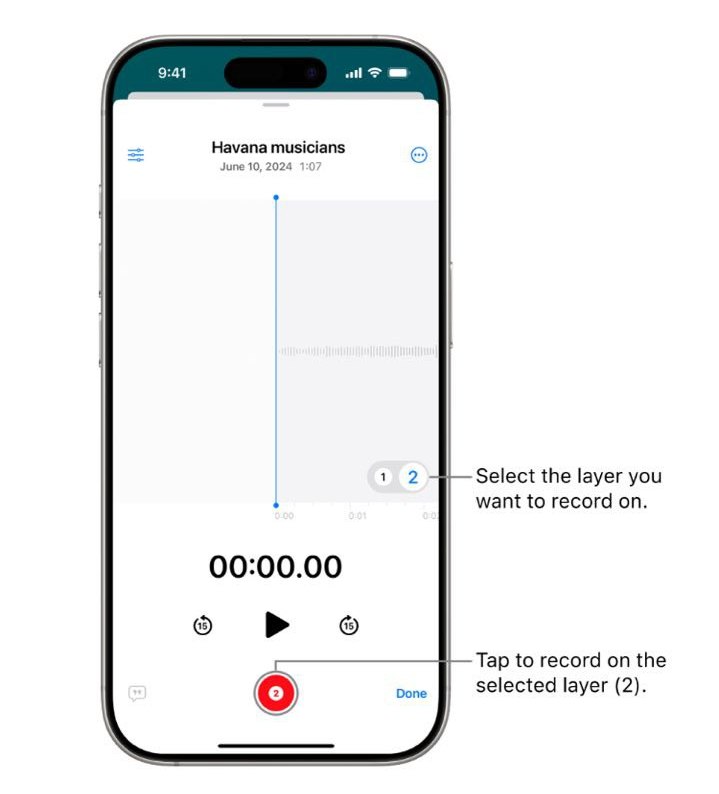
Layered Voice Memos They can be mixed or separated within the app. To do this, you just need to follow the first two steps to open the audio waveform and adjust the slider to mix them together or press the three-dot button to separate each layer into a separate file.
If you have not yet updated to the latest version of the operating system or your iPhone does not support it, Layered Voice Memos recordings will not be displayed. In this case, the user can separate each layer into a .m4a file that can be used within the editing program.
«I don’t think people realize how critical a role voice memos on the iPhone play in musicians’ creative process,» said Grammy winner Michael Bublé. «And now with layered recording, if an artist has a moment of inspiration, not being subject to the traditional studio experience becomes the advantage, not the limitation. It’s very typical of Apple to build something we didn’t know we needed , and now we won’t be able to live without it.»